
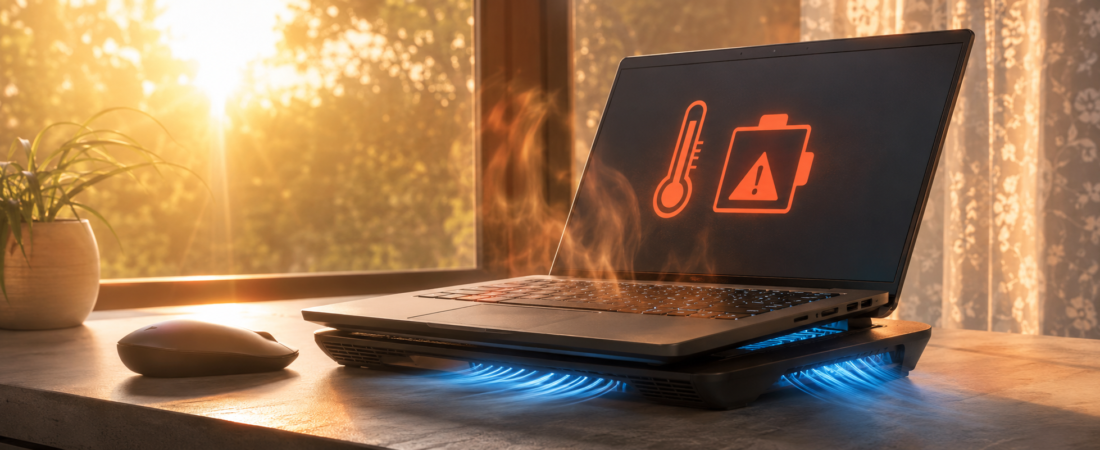
If your laptop feels hot to the touch this summer, that’s not just discomfort, it’s damage happening in real time. Laptop overheating in summer doesn’t usually show up as a dramatic shutdown. It shows up as a swollen battery months from now, a fan that never stops whining, or files that quietly corrupt mid-save. By the end of this guide, you’ll know exactly which warning signs to check on your own laptop right now, and which fix to apply today to stop the damage before it gets expensive.
We covered this same silent-damage pattern in Phone Overheating in Summer: The Silent Damage You Never See, and laptops are dealing with an even tougher version of it. Phones can at least slip into a pocket or bag out of direct sun. Laptops sit open on desks, beds, and laps for hours, often while running hot workloads, with vents that clog with dust nobody ever looks at.
The current heat dome sweeping the US and Canada has pushed real-feel temperatures past 110°F in some regions, and that ambient heat stacks directly on top of whatever heat your laptop already generates internally. So this isn’t a hypothetical, it’s happening in living rooms and home offices right now.
Table of contents
- Why laptops overheat in summer
- The warning signs you’re probably missing
- Step-by-step fixes
- Prevention and gear that actually helps
- Key takeaways
- FAQ
Why laptops overheat in summer
A laptop generates its own heat just by running normal software. In summer, that heat has nowhere good to go. Ambient room temperature climbs, air conditioning struggles to keep up, and the laptop’s small internal fans are suddenly fighting a losing battle against both internal and external heat at once.
Three things typically combine to cause laptop overheating in summer:
Dust and vent buildup. Dust collects inside the chassis over months, coating the heatsink fins and clogging the exhaust vents. Once airflow is restricted, heat has no exit path, so temperatures climb even during light use.
Poor surface airflow. Using a laptop on a bed, couch cushion, or lap blocks the intake vents on the bottom panel. Because most laptops pull cool air from underneath, a soft surface can raise internal temperatures significantly within minutes.
Direct heat exposure. Leaving a laptop near a sunny window, in a hot car, or on a patio table adds ambient heat the internal fans were never designed to fight. Combined with a heat wave, that’s often enough to push components past their safe operating range.
The warning signs you’re probably missing
Most people wait for a laptop to shut off before they think something’s wrong. By then, the damage is already done. Here’s what to check before it gets that far.
Physical and performance signs
- The bottom panel is uncomfortably hot to the touch, not just warm. Warm is normal; hot enough that you want to move your hand is not.
- The fan runs constantly at high speed, even during light tasks like browsing or writing.
- Performance drops mid-task. This is thermal throttling: laptop CPUs typically start throttling somewhere around 90°C internally, deliberately slowing down to protect the chip. If your laptop feels sluggish specifically after 20-30 minutes of use, heat is very likely the cause.
- Random shutdowns or restarts during demanding tasks, especially video calls, gaming, or exporting files.
The sign almost everyone misses
A slightly puffy trackpad or a laptop that no longer sits flat on the desk. This is a swollen battery, and it’s one of the clearest signs of sustained heat damage. Lithium-ion batteries degrade faster above roughly 86°F (30°C) internally, and prolonged exposure above 104°F (40°C) causes substantial, permanent capacity loss. That damage doesn’t reverse. Once the internal structure of the cell breaks down from heat, the battery consumes its own finite lithium and electrolyte trying to compensate, and every cycle of that leaves less capacity behind for good.
If you notice any lifting at the trackpad or an uneven base, stop using the laptop and get the battery checked. A swollen lithium battery is a genuine safety risk, not just an inconvenience.
Step-by-step fixes
Here’s what to actually do, starting with what takes two minutes and moving to what takes longer.
Step 1: clean the vents
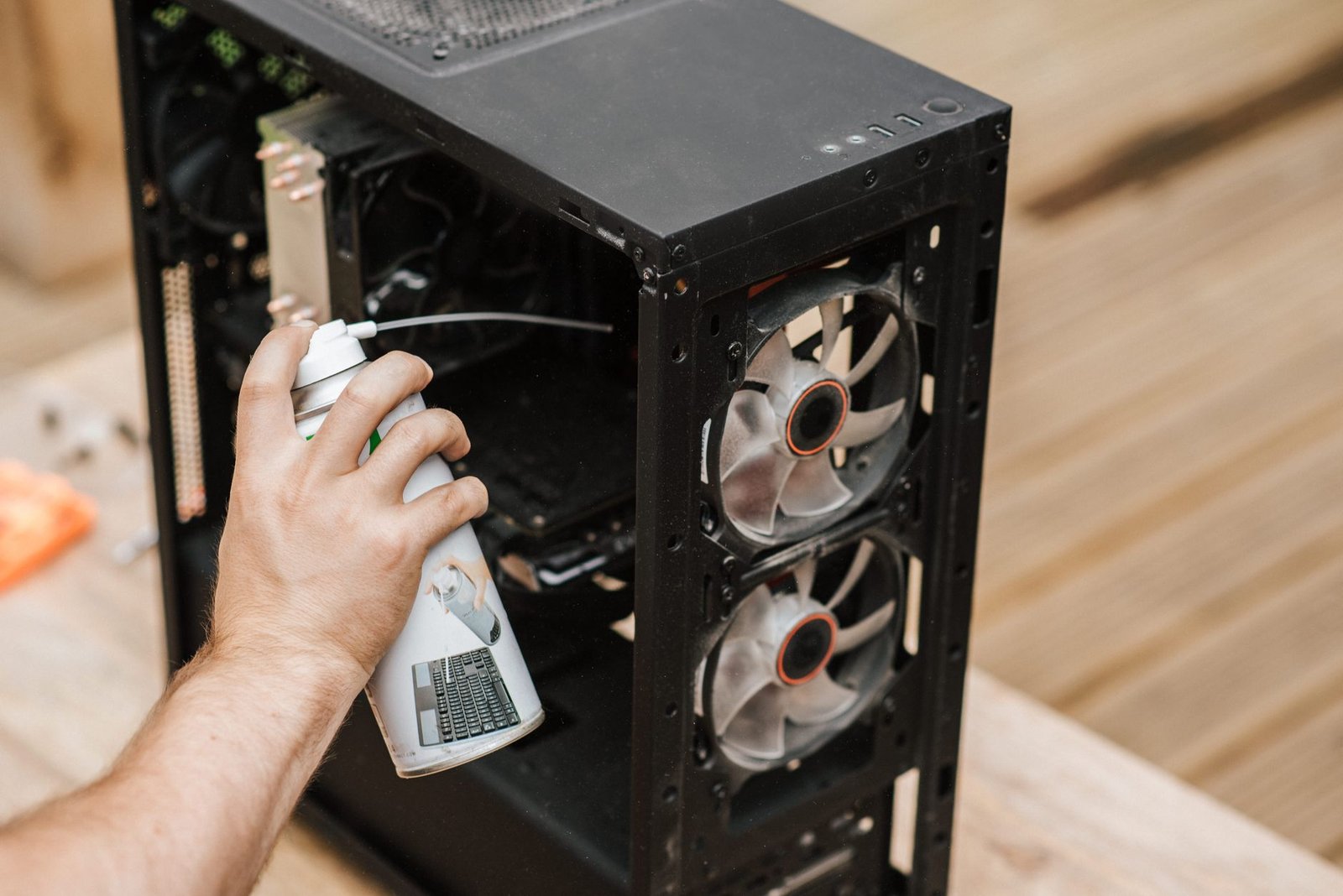
Dust is the single most common, most fixable cause of laptop overheating in summer. Power the laptop off, then use a can of compressed air held upright to blast short bursts through the exhaust vents and intake grilles. Do this every one to two months if you use your laptop daily, more often if you have pets or work in a dusty space.
Step 2: fix where you use it
Move off soft surfaces. A hard, flat surface (desk, table, hard book) keeps the bottom vents open. If you regularly work from a couch or bed, that alone could be the biggest single change you make today.
Step 3: check your power settings
Dialing back performance mode to “balanced” during a heat wave reduces how hard the CPU works, which directly reduces how much heat it generates. Most laptops let you switch this from the taskbar or system settings in a few seconds.
Step 4: add active cooling
If cleaning and repositioning aren’t enough, especially for gaming or video-editing laptops, a laptop cooling pad adds active airflow underneath the chassis. It’s the single most effective upgrade for anyone running hot workloads through a heat wave.
Step 5: give it airflow breaks
During the worst heat, take short breaks between demanding tasks so the internals can dump accumulated heat instead of climbing continuously for hours.
Prevention and gear that actually helps
Once the immediate fix is done, a few habits and a small amount of gear keep the problem from coming back all summer.
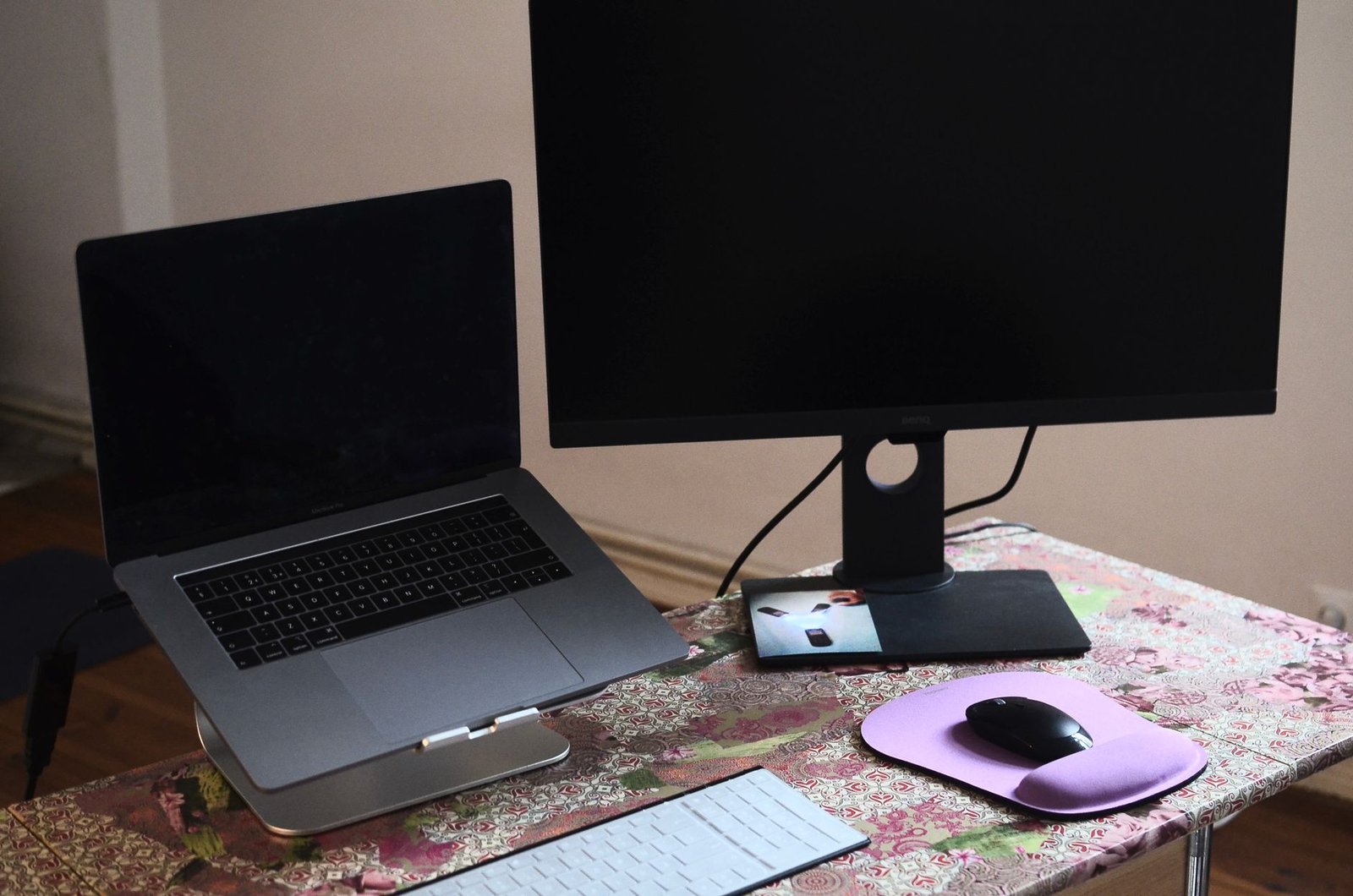
Elevate it. A laptop stand raises the chassis off the desk surface, improving airflow underneath and often reducing keyboard heat too, which matters for comfort as much as thermals.
Keep it out of direct sun and hot cars. Even a closed laptop in a hot car can reach internal temperatures well past safe battery thresholds within an hour.
Dell’s own overheating-prevention guidance recommends the same core habits: keep vents unobstructed, use a hard flat surface, and clean dust regularly, confirming this isn’t just a third-party opinion.
Watch charging habits during heat waves. Charging generates its own heat, so charging a laptop that’s already running hot compounds the problem. When possible, let it cool down before plugging in during the hottest part of the day.
Some links in this article are affiliate links. If you buy through them, we may earn a small commission at no extra cost to you. Learn more.
As an Amazon Associate I earn from qualifying purchases.
Key takeaways
- Laptop overheating in summer causes real, permanent damage, most visibly to the battery, well before you see a shutdown.
- A hot-to-touch base, constant fan noise, mid-task slowdowns, and a puffy trackpad are the four signs worth checking today.
- Dust buildup and soft-surface airflow blockage cause most of the problem, and both are free, two-minute fixes.
- A cooling pad and laptop stand meaningfully help hot workloads (gaming, editing, heavy multitasking) survive an active heat wave.
- If you spot a swollen battery, stop using the laptop and get it serviced. That damage is a safety issue, not just a performance one.
FAQ
What temperature is actually dangerous for a laptop?
Internally, once CPU temperatures approach roughly 90°C, throttling kicks in to protect the chip. For the battery specifically, sustained exposure above about 104°F (40°C) causes real, permanent capacity loss over time.
Can laptop overheating in summer permanently damage the battery even if the laptop still works fine?
Yes. Battery degradation from heat is cumulative and largely invisible day to day. The laptop can run normally while the battery quietly loses capacity in the background.
Is it safe to use a laptop on a bed during a heat wave?
Not for extended sessions. Soft surfaces block the intake vents most laptops rely on, and combined with high ambient heat, that’s one of the fastest ways to push internal temperatures too high.
Do cooling pads actually make a measurable difference?
Yes, for laptops doing sustained heavy work like gaming or video export, since a cooling pad adds active airflow the laptop’s own fans can’t generate alone. For light browsing, ventilation and dust cleaning usually matter more.
How often should I clean my laptop’s vents?
Every one to two months for daily use, more often with pets or in dusty environments. It’s the single highest-value, lowest-cost fix for laptop overheating in summer.
Should I leave my laptop plugged in all day during a heat wave?
Avoid it if the laptop is already running hot. Charging adds its own heat on top of ambient and workload heat, so unplugging once it’s fully charged, or letting it cool before charging, reduces the compounding effect.
Ready to check your laptop?
Take two minutes right now: touch the bottom panel, listen to the fan, and look at whether the trackpad sits flat. If anything feels off, start with Step 1 above, cleaning the vents, before the heat wave does any more quiet damage.