

The short version: to watch Super Mario Galaxy Movie the day it lands, you need a Peacock plan, and the cheapest one that reliably includes the film is Peacock Premium at $10.99/month. If you want it in 4K with HDR, you need Peacock Premium Plus at $16.99/month, because 4K on Peacock lives only on that top tier. Everything else in this guide is about not paying a cent more than you have to, using the TV or streaming stick you probably already own.
The Super Mario Galaxy Movie hits Peacock on July 30, 2026, after crossing $1 billion at the global box office. By the end of this article you will know the exact plan to pick, whether your current setup can even do 4K, whether a cheap 4K stick is worth buying, and how to cancel before a plan you only wanted for one movie quietly renews.
Some links in this article are affiliate links. If you buy through them, we may earn a small commission at no extra cost to you. Learn more.
As an Amazon Associate I earn from qualifying purchases.
Table of contents
- The cheapest way to watch Super Mario Galaxy Movie on Peacock
- Does Peacock really stream in 4K?
- The device you already own probably works
- The budget 4K upgrade, only if you need it
- Family setup and the cancel-before-you-forget move
- Key takeaways
- FAQ
The cheapest way to watch Super Mario Galaxy Movie on Peacock
Peacock has three paid tiers in 2026 (you can confirm current pricing on Peacock’s official plan page). Here is how they stack up for this specific job.
| Plan | Price/month | Ads | 4K + HDR | Best for this movie |
|---|---|---|---|---|
| Select | $7.99 | Yes | No | Skip it: limited catalog, may not include the film |
| Premium | $10.99 | Yes (light) | No | Cheapest safe pick to watch in HD |
| Premium Plus | $16.99 | Fewer ads | Yes | The only tier that unlocks 4K HDR |
The trap here is the $7.99 Select plan. It looks like the bargain, but Select only carries a slice of the catalog, so it is not a safe bet for a marquee film library title. Premium at $10.99 is the real floor if you just want to watch in solid HD with light ads.
If your goal is genuine 4K, there is no way around Premium Plus at $16.99. We will explain why in the next section, because the answer changes whether that extra $6 is worth it for you.

Does Peacock really stream in 4K?
Yes, but with an honest asterisk. Peacock streams select titles in 4K with HDR (including Dolby Vision), and that feature is exclusive to Premium Plus. It is not applied to the entire library, so 4K is a per-title thing, not a blanket guarantee.
For a headline release the size of Super Mario Galaxy Movie, 4K HDR is the expected treatment, and it is a strong candidate to launch that way. If it matters to you, the move is simple: get Premium Plus, open the title, and check whether the player shows a 4K or HDR badge. If it does not, you can downgrade to Premium and stop overpaying.
Two things have to line up for 4K to actually reach your eyes:
- The plan (Premium Plus), and
- The hardware (a 4K TV plus a device that can decode Peacock’s 4K stream).
That second point is where most people quietly lose their 4K without realizing it. Remember that HDR, the jump in contrast and color, is often a bigger visible upgrade than raw resolution, so a good 1080p-with-HDR image can still look excellent.
The device you already own probably works
Before you buy anything, check what you have. The Peacock app runs in 4K on a wide range of gear you may already own:
- Smart TVs from the last few years (most 4K models with the Peacock app built in)
- Fire TV devices (Fire TV Stick 4K, Fire TV Stick 4K Max)
- Roku 4K players and 4K Roku TVs
- Apple TV 4K
- Chromecast with Google TV and the Google TV Streamer
- Recent game consoles with the Peacock app
If you already own any of these plus a 4K HDR TV, you are done. Install Peacock, sign in, and you are set for July 30. Do not buy a new streaming stick just for this movie if your current one already streams other apps in 4K.
The people who genuinely need an upgrade are a smaller group: anyone on an older 1080p streaming box, a first-generation stick that chokes on modern apps, or a newer 4K TV fed by a device that tops out at HD. If that is you, keep reading. If it is not, jump to family setup and the cancel reminder.
The budget 4K upgrade, only if you need it
If your setup cannot do 4K, you do not need to spend much to fix it. A budget 4K stick turns any 4K TV with a spare HDMI port into a proper streaming machine, and it upgrades every other app too, not just Peacock.
Here are the three we would actually consider, all in the same price band:
- Fire TV Stick 4K (around $50): the easy default. Fast, cheap, supports 4K, HDR10+, and Dolby Vision, and the Peacock app is well supported on Fire TV. This is the one most people should buy.
- Roku Streaming Stick 4K (around $50): the best pick if you prefer Roku’s simpler, ad-lighter home screen. Same 4K and HDR support, on a neutral platform that does not push one service.
- Chromecast with Google TV (around $50): the pick if you live in the Google and Android world and want casting from your phone built in.
Our recommendation for most readers is the Fire TV Stick 4K: it is the cheapest reliable route to 4K Peacock, and it pays for itself across every app you use.
Check the current Fire TV Stick 4K price on Amazon →
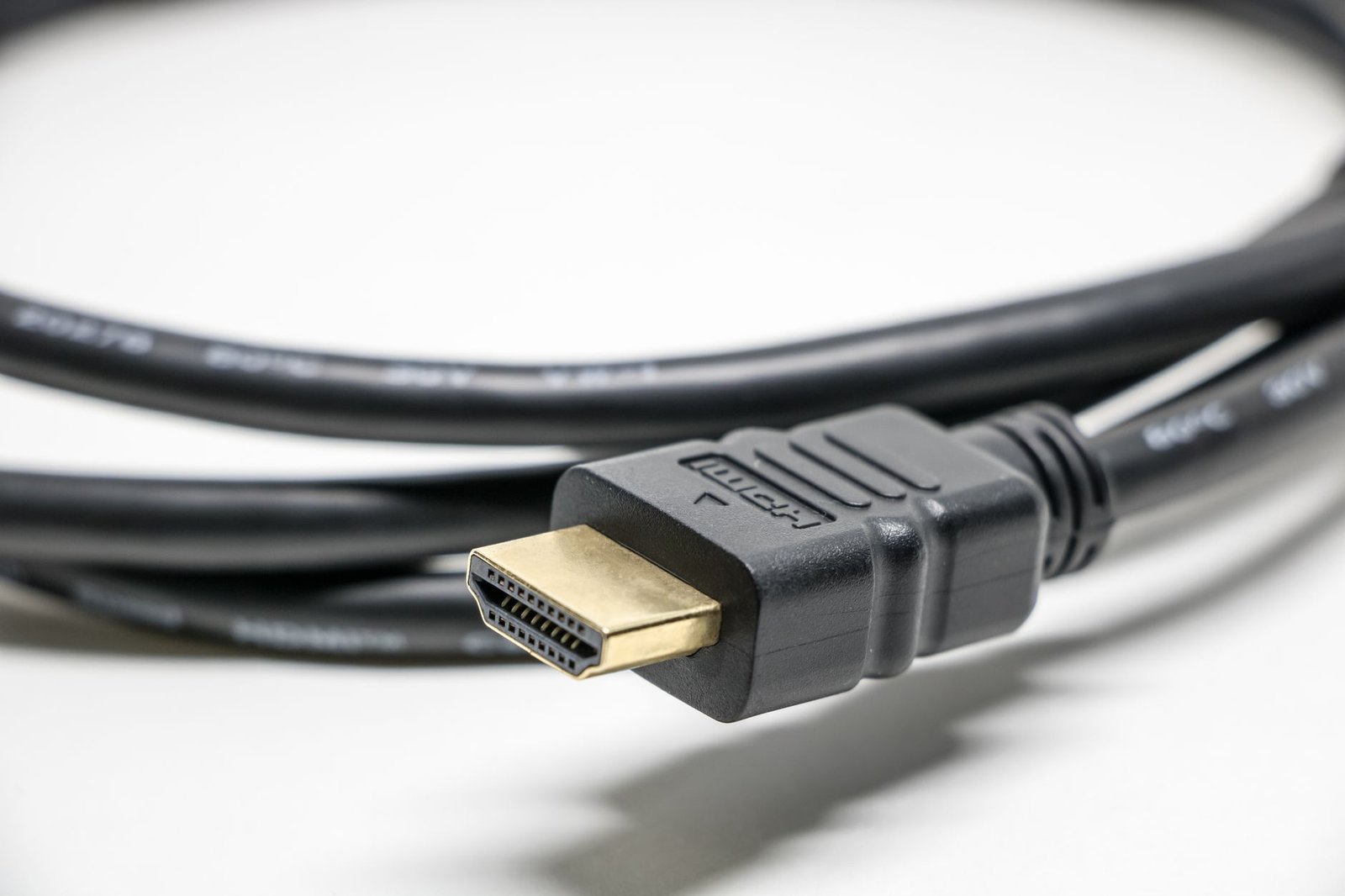
One small thing people forget: to carry a 4K HDR signal cleanly, use a decent High Speed HDMI 2.1 cable. A very old cable can quietly cap you at 1080p. You do not need a boutique cable, just a modern one rated for 4K.
Family setup and the cancel-before-you-forget move
This is a family movie, so two practical things matter.
Profiles and parental controls. Set up a kids profile in Peacock before movie night so the little ones land on age-appropriate content and you keep your own watch history clean. It takes two minutes in account settings.
The cancel reminder. If you are subscribing to Peacock mostly for this one film, decide your exit now. Peacock is month to month, so the smart play is to set a phone reminder for a day or two before your next billing date to either cancel or downgrade. Watch the movie, keep it for anything else you want that month, then drop it. That one reminder is the difference between paying $16.99 once and paying it for six months you forgot about.

Key takeaways
- Cheapest safe plan: Peacock Premium at $10.99/month (HD, light ads).
- Only 4K tier: Peacock Premium Plus at $16.99/month, and Peacock’s 4K applies to select titles.
- Skip Select ($7.99): its limited catalog is not a safe bet for this film.
- Check your gear first: most recent 4K TVs, Fire TV, Roku, Apple TV 4K, and Chromecast already stream Peacock in 4K.
- Only upgrade if you must: a roughly $50 Fire TV Stick 4K is the best budget fix, plus a modern HDMI cable.
- Cancel or downgrade right after the movie if you only wanted it for one night.
FAQ
When can I watch Super Mario Galaxy Movie on Peacock?
It starts streaming on Peacock on July 30, 2026.
What is the cheapest Peacock plan that includes the movie?
Peacock Premium at $10.99/month is the cheapest tier we would trust to include it, with light ads and HD quality. The $7.99 Select plan carries only part of the catalog.
Which Peacock plan do I need for 4K?
Peacock Premium Plus at $16.99/month. It is the only tier that unlocks 4K and HDR, and even then 4K applies to select titles rather than everything.
Do I need a special device to watch in 4K?
You need a 4K TV plus a device that supports Peacock in 4K, such as a recent smart TV, Fire TV Stick 4K, Roku 4K player, Apple TV 4K, or Chromecast with Google TV.
Can I watch it offline on a plane or road trip?
Downloads are a Premium Plus feature, so you can save it for offline viewing on that tier through the mobile app.
Is it worth buying a new streaming stick just for this?
Only if your current setup cannot do 4K. A roughly $50 Fire TV Stick 4K upgrades every app, so it is worth it as a general upgrade, not just for one movie.
The bottom line
To watch Super Mario Galaxy Movie without overpaying: start July 30 on Peacock Premium ($10.99) for HD, or step up to Premium Plus ($16.99) only if you own a 4K HDR TV and a device that can feed it. Check the gear you already own before you buy anything, grab a cheap Fire TV Stick 4K only if you truly need one, and set a cancel reminder so a one-movie subscription does not turn into a six-month habit. Pick the right tier, use what you have, and keep your money.