

That Google Photos storage full warning means your phone has quietly stopped backing up new pictures, but you can almost always reclaim the space and skip the Google One bill. The fastest path: find out what is really eating your quota (it is often not photos), clear the biggest offenders from Gmail and Drive, then export or offload anything you want to keep before you decide whether paying is worth it.
Here is the part most people miss. When your account hits the limit, the problem is rarely just photos. Every free Google account gets one 15GB pool that Gmail, Drive, and Photos all share, according to Google’s own documentation. So old email attachments and forgotten Drive files quietly count against the same 15GB that stops your camera roll from backing up.
- Fix 1: See what is actually eating your 15GB
- Fix 2: Clear out Gmail (the sneaky space hog)
- Fix 3: Clear the heavy files from Google Drive
- Fix 4: Clean up the photos themselves
- Fix 5: Export with Google Takeout, then offload
- When paying actually makes the most sense
- Frequently asked questions
Let us fix it in order, cheapest move first.
Fix 1: See what is actually eating your 15GB
Before you delete a single photo, look at the real breakdown. Open the Google One storage manager (tap the storage bar in the Google Photos or Google One app, or visit the storage page in a browser). It shows exactly how many gigabytes Gmail, Drive, and Photos each consume.
For most people, Photos really is the biggest slice, often more than half the pool. But Gmail and Drive together can easily hold several gigabytes of stuff you forgot about. Either way, you now know where to aim.
Fix 2: Clear out Gmail (the sneaky space hog)
Gmail is usually the easiest place to reclaim a chunk fast, because attachments add up and nobody deletes email.

Delete the biggest attachments
In the Gmail search bar, type has:attachment larger:10MB and hit enter. This surfaces your heaviest emails first. Select the ones you no longer need, then delete them.
Empty spam and trash
Spam and trash still count against your quota until they are truly gone. First open the Spam folder and choose “Delete all spam messages now,” then do the same in Trash. Gmail otherwise auto-purges these on a delay, so clearing them manually gives you instant space.
Fix 3: Clear the heavy files from Google Drive
Drive is the second place to check. Open Drive in a browser, click the “Storage” link in the left sidebar, and it sorts your files by size, largest first.
Old video exports, ZIP files, and duplicate downloads are common culprits. Delete what you do not need, then empty the Drive trash too, because files in the trash keep occupying your quota until you permanently remove them. One quiet gotcha: Google Docs, Sheets, and Slides created or edited after June 1, 2021 also count toward your quota, so hundreds of abandoned documents add up.
Fix 4: Clean up the photos themselves
Now, and only now, tackle the photos. The storage manager gives you shortcut categories that are safe to trim: blurry shots, screenshots, and large videos.
Start with the easy wins
Screenshots and blurry photos are almost never worth keeping. The storage manager bundles them so you can review and delete in bulk. Large videos are where the real gigabytes hide, since a few minutes of 4K footage can outweigh hundreds of photos.
Empty the Photos trash
Deleted photos sit in the Photos trash for up to 60 days and still count against your 15GB. To reclaim the space immediately, open the trash and empty it. Just be sure you have a backup of anything you might want later, because this step is permanent.
If your phone itself is also cramped, the same cleanup mindset works on-device. Our guide to free up space on the phone itself walks through doing it without losing a single photo.
Fix 5: Export with Google Takeout, then offload
If you have thousands of photos worth keeping but you do not want to pay Google monthly, the move is to get a full copy out and store it somewhere else. That way you can safely delete from the cloud and reset your quota.
Download everything with Takeout
Head to Google Takeout, deselect everything, then select only Google Photos. Choose a one-time export and pick the 50GB archive size so Google is less likely to split it into many parts. Google then prepares the archive, which can take anywhere from minutes to a few days depending on library size, and emails you a download link.
Two gotchas are worth knowing. First, Takeout links expire in about 7 days and each archive can be downloaded only 5 times, so grab them promptly. Second, keep the little .json sidecar files, because they hold dates, locations, and descriptions, so deleting them strips metadata a future restore would want.
Where to put the exported photos
Once the photos live on your computer or an external drive, you have breathing room. If you also want a second cloud copy for free, Prime members get a strong option: Amazon Photos gives Prime members unlimited full-resolution photo backup plus 5GB for video, at no extra cost beyond the Prime membership you already pay for. It is a genuinely free landing spot for a photo library, though video still counts against that 5GB cap.
Some links in this article are affiliate links. If you buy through them, we may earn a small commission at no extra cost to you. Learn more.
As an Amazon Associate I earn from qualifying purchases.
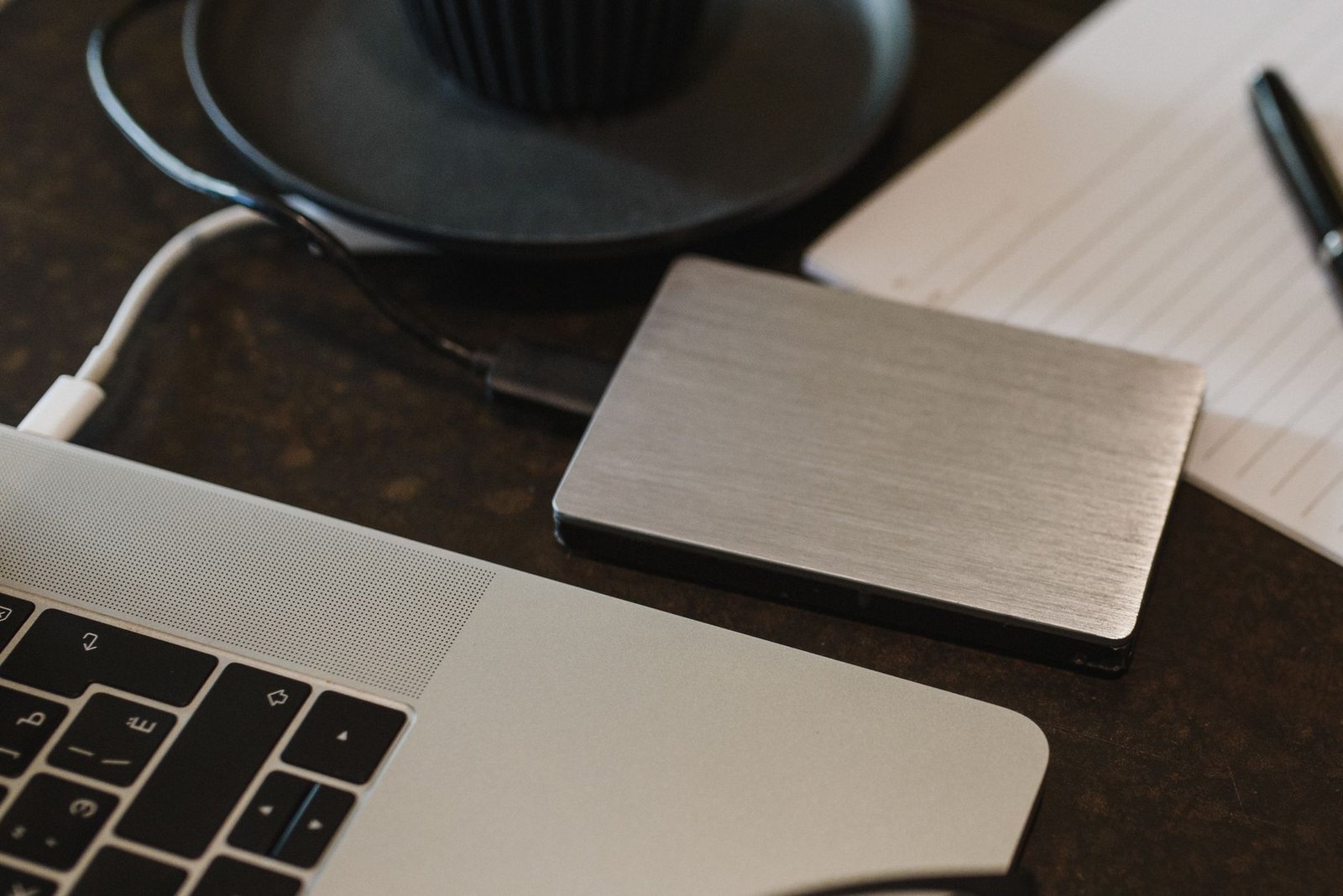
When paying actually makes the most sense
Sometimes the cleanest answer is to pay, and the trick is paying the smallest right amount. Google One’s entry plan is genuinely cheap: 100GB runs about $1.99 per month, or $19.99 for the year if you pay annually. That is roughly seven times the free space for the price of a coffee, and it keeps your photos exactly where they already are.
Here is the honest framework.
- Pay for Google One (100GB) if: you want zero hassle, you like Photos search and face grouping, and $20 a year is worth not thinking about it. This is the right call for most people who just want the warning to stop.
- Go free with Amazon Photos if: you are already a Prime member and mainly need photo backup. Unlimited full-resolution photos for no added cost is hard to beat, and you keep 5GB of that even if Prime lapses.
- Use iCloud or Proton Drive free tiers if: your library is small. Both cap at 5GB free, which is less than Google’s 15GB, so these work as supplements, not replacements.
The chart below shows how Google One’s tiers scale, so you can see why 100GB is the sweet spot for most photo libraries.
| Google One plan | Monthly | Annual |
|---|---|---|
| 100GB | $1.99 | $19.99 |
| 200GB | $2.99 | $29.99 |
| 2TB | $9.99 | $99.99 |
Speaking of which, this is the same discipline that keeps rising subscription costs from silently draining your budget. A quick way to stay ahead of them is to track where your subscriptions go so nothing renews on autopilot.

Frequently asked questions
Does deleting emails free up Google Photos space?
Yes. Because Gmail, Drive, and Photos share one 15GB pool, clearing large email attachments and spam frees space that Photos can then use for new backups.
Will I lose my photos if I never pay?
Not immediately. Your existing photos stay put, but new ones stop backing up once you hit the limit. Google does warn that if an account sits over quota for 2 years, it may delete content across Gmail, Drive, and Photos, so do not ignore a full account forever.
Does deleting a photo from Google Photos also delete it from my phone?
It can, if backup and sync are on, because the app treats them as one library. So export or confirm a local copy first, then delete from the cloud.
Run the five fixes top to bottom, and most people never reach the payment screen at all.