

A passkey takes roughly 90 seconds to create, and by the time you finish this guide your Google, Apple, Microsoft and Amazon accounts can all be running on a sign-in that a scammer cannot steal from you. No password to type, nothing to leak in a breach, and no convincing fake login page that can trick you, because the credential simply refuses to work anywhere except the real site.
Here is the short version of how to set up passkeys: open the account’s security settings, find the passkey option, tap create, then confirm with the same fingerprint, face scan or PIN you already use to unlock your phone. Your device builds the key on the spot. Everything below is the detail that makes it stick: where those keys actually live, how they follow you to a new laptop, and what really happens if the phone holding them ends up at the bottom of a lake.
Some links in this article are affiliate links. If you buy through them, we may earn a small commission at no extra cost to you. Learn more.
In this guide
- What a passkey actually is, in plain English
- Passkeys vs passwords: the one difference that matters
- Before you start: a three-minute checklist
- How to set up passkeys on your Google account
- How to set up passkeys on iPhone, iPad and Mac
- How to set up passkeys on your Microsoft account
- How to set up a passkey on Amazon
- Where your passkeys should actually live
- Syncing passkeys across devices and ecosystems
- What happens if you lose your phone
- Your 45-minute passwordless plan
What a passkey actually is, in plain English
When you create a passkey, your phone or laptop generates two mathematically linked keys. The website keeps the public one. Your device keeps the private one, and that private half never gets sent anywhere, not even to the site you are signing into.
Signing in works like a challenge and a signature. The site sends your device a one-time puzzle, your device asks you to prove it is you (Face ID, a fingerprint, a PIN), and then it signs that puzzle with the private key. Amazon or Google checks the signature against the public key on file and lets you in.
Two details matter more than the cryptography. First, your fingerprint or face never leaves your device and is never sent to the website, so a breach at the company cannot expose your biometrics. Second, every passkey is welded to the exact domain it was made for. A passkey created for google.com will not offer itself up on gooogle-verify-login.com, no matter how perfect the copy looks, because your browser checks the address before the key is even eligible.
That second point is the whole ballgame, and it leads straight to the comparison people actually search for.
Passkeys vs passwords: the one difference that matters
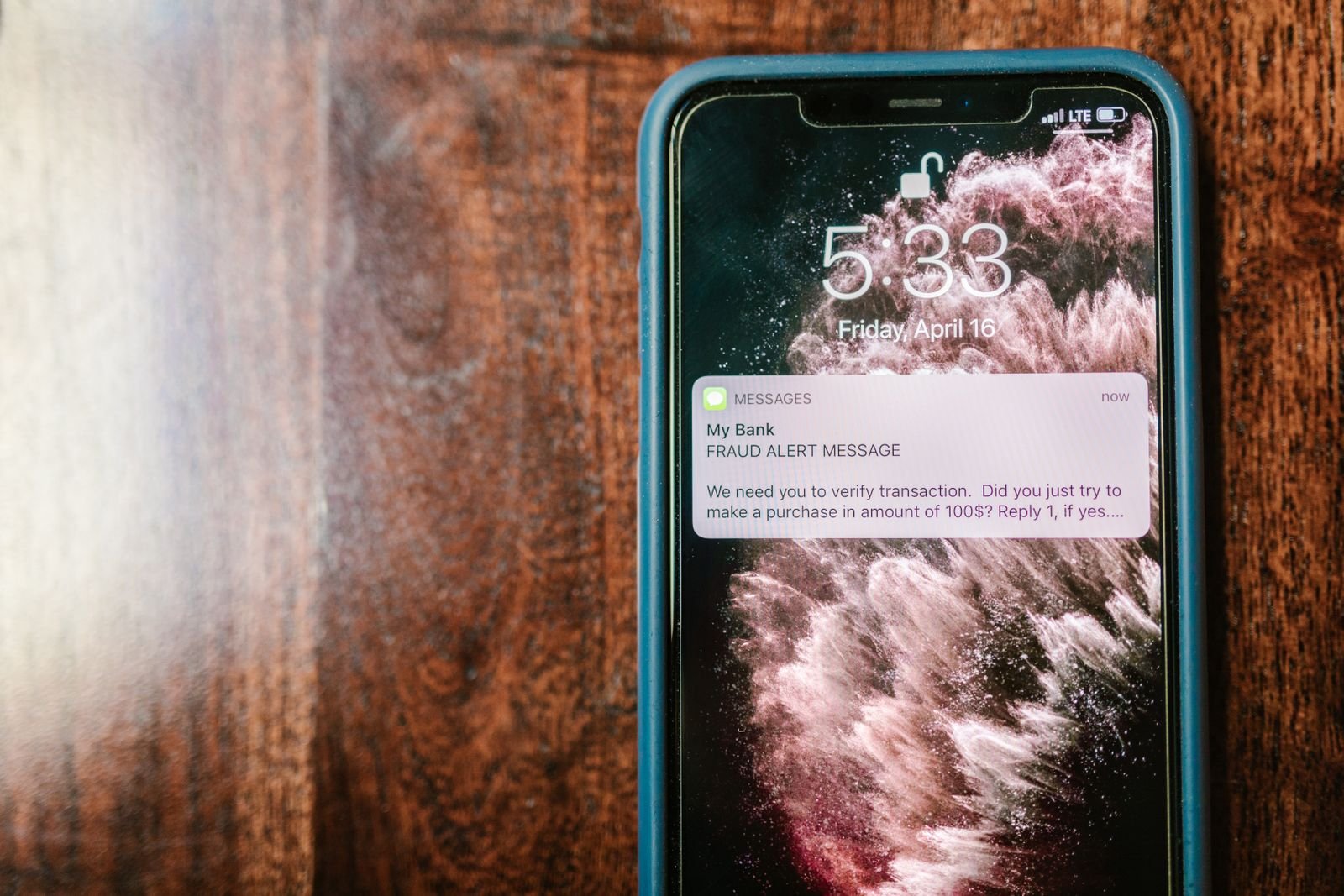
A password is a shared secret. You know it, the company stores a scrambled version of it, and anyone who tricks either of you into handing it over now has it too. That single design flaw is why credential stuffing, breach dumps and phishing kits all still work in 2026.
A passkey is not a shared secret at all. Nothing reusable ever travels across the internet, so there is no secret for a fake page to capture, no hash for a breach to leak, and nothing for you to accidentally paste into the wrong box at 11pm.
| Password | Passkey | |
|---|---|---|
| What the site stores | A hash of your secret | A public key, useless on its own |
| What travels at sign-in | Your actual secret | A one-time signature |
| Phishable | Yes, this is the main attack | No, it is bound to the real domain |
| Exposed in a company breach | Yes | No |
| Reused across sites | Almost always | Never, each one is unique |
| Needs a second factor | Yes, ideally | No, the device unlock is the second factor |
Notice the last row. A passkey folds “something you have” (the device) and “something you are or know” (the biometric or PIN) into a single tap, which is why it usually replaces both your password and your authenticator code rather than sitting on top of them.
This is no longer early-adopter territory
The adoption numbers moved fast. On World Passkey Day 2026 the FIDO Alliance reported roughly five billion passkeys in use worldwide, alongside survey data showing that most people have already turned at least one on.
What passkeys do not fix
Honesty matters more than hype here, so three real limits. Passkeys protect the front door, not the whole house: if malware already owns your unlocked laptop, it does not need your password. They also do nothing about the account recovery path, which is why an attacker who can talk a support agent into resetting your account still gets in. And they cannot stop a person on the phone from convincing you to add their device, which is exactly the kind of pressure a family safe word that stops AI voice scams is designed to break.
Before you start: a three-minute checklist
Run through this once and every walkthrough below gets easier.
- Turn on a screen lock and biometrics. No passkey system will let you create a credential on a device with no lock. Face ID, Touch ID, Windows Hello or a PIN all count.
- Check your versions. Passkey support is broadly baseline now, but the floor is roughly iOS 16 or later, Android 9 or later, macOS Ventura or later with Safari 16, and Windows 10 or 11 with a current version of Chrome or Edge.
- Sign in on a second device. Have at least two devices on the same Apple Account, Google Account or Microsoft account before you start, so you can confirm a passkey really syncs instead of hoping it did.
- Confirm your recovery contacts. Make sure the recovery email and phone number on each account are current. You will lean on these exactly once, on the worst day.
- Decide where the keys will live. Built in manager or cross platform vault? There is a proper decision framework further down, and it is worth reading before you create a dozen credentials in the wrong place.
How to set up passkeys on your Google account
Google was the first big consumer platform to make passkeys the default sign-in option for personal accounts, so this one is the smoothest, and it is the best account to start with because so much else hangs off it.
Create the passkey
Go to myaccount.google.com, open Security, then find Passkeys and security keys under “How you sign in to Google”. Select Create a passkey and confirm with your device unlock. On an Android phone that is already signed in, Google may tell you it has automatically created a passkey for you, in which case you just confirm it.
Do this on your phone first if you can. A passkey made on a phone that is signed into your Google Account lands in Google Password Manager and syncs to every other Android device and Chrome install on that account, which means one setup covers a lot of ground.
Turn on “Skip password when possible”
Once a passkey exists, a Skip password when possible toggle appears in your Google security settings. Leave it on. With it enabled, Google stops asking for the password first and goes straight to the passkey prompt, which is the entire point. Turning it off simply returns you to password prompts, so it is a safe switch to experiment with.
Your password does not disappear when you do this, and that is deliberate. Google keeps it as a fallback while the ecosystem finishes its transition, so treat the passkey as your new front door rather than as a full password deletion.
How to set up passkeys on iPhone, iPad and Mac
Apple’s version is the most invisible of the four, because iCloud Keychain has been quietly holding passkeys since 2022. That also means the setup is mostly a matter of confirming two switches are already on.
Turn on iCloud Keychain and AutoFill first
Open Settings, tap your name at the top, then iCloud, then Passwords (labelled Passwords and Keychain on older versions) and make sure syncing is on. Next go to Settings > General > AutoFill and Passwords and confirm that AutoFill is enabled with Passwords (Apple’s own app) selected as a provider. Without both of those, your iPhone will happily make a passkey and then strand it on that one handset.
Create your first passkey
Now visit a site that supports them and start the flow from the site’s own security page. When it offers to save a passkey, iOS shows a sheet asking where to store it, you pick Passwords (or another provider), and Face ID does the rest. From then on the sign-in button on that site triggers a Face ID prompt instead of a keyboard.
Anything created this way appears in the Passwords app and syncs to every device on the same Apple Account, so your Mac and iPad inherit it without you touching them.
Passkeys are no longer trapped in Apple
This is the change most older guides miss. With iOS 26 and macOS 26, Apple added support for the FIDO Alliance’s Credential Exchange standards, which lets the Passwords app hand passkeys directly to another credential manager. The transfer is app to app and encrypted end to end, so no plain text file of your logins ever touches your disk.
Practically, that kills the strongest argument against starting today. Choosing iCloud Keychain now is no longer a one-way door.
How to set up passkeys on your Microsoft account
Microsoft has pushed harder on this than anyone. Since May 2025 every brand new Microsoft account is passwordless by default, meaning new users never enrol a password at all and sign in with a passkey, a push notification or a security key from day one.
If your account already exists
Head to account.microsoft.com, open Security, then Advanced security options, and choose to add a new sign-in method. Pick Face, fingerprint, PIN or security key, then follow the prompt to create the passkey on the device in front of you. Windows Hello handles the biometric side on a PC.
Existing accounts are not forced to change, but you can go further than most people realise: Microsoft lets you delete the password from an existing account entirely, which removes the last thing a phishing page could ask you for. Do that only after you have confirmed the passkey works on two separate devices.
Windows 11 can now hand passkeys to your own manager
For a long time Windows kept passkeys locked inside Windows Hello on that specific machine. That changed with the November 2025 security update, which shipped Microsoft’s passkey plugin API to everyone and let third party managers plug straight into the native Windows sign-in flow. Bitwarden and 1Password were the first to arrive, and Microsoft’s own Edge based password manager works the same way.
To switch it on, update Windows, install your manager’s app, then go to Settings > Accounts > Passkeys > Advanced options and enable the plugin credential manager. Windows still runs the WebAuthn handshake and Windows Hello still does the “prove it is you” part, while your chosen manager stores and syncs the keys.
That matters most for the iPhone plus Windows PC crowd, who previously had the roughest passkey experience of anyone.
How to set up a passkey on Amazon
Amazon is the quickest win on this list and a good confidence builder, because you will use it constantly.
Open Your Account, choose Login & security, find the Passkeys row and select Set up, then confirm with your device unlock. The passkey saves to whichever provider you chose earlier (Apple Passwords, Google Password Manager or your own vault), so it immediately works on the other devices tied to that provider.
One quirk worth knowing: Amazon’s mobile app and website can still fall back to a password or an emailed code during unusual sign-ins, especially on a brand new device. That is normal fallback behaviour rather than a broken passkey, so do not delete your Amazon password on day one.
While you are in that settings area, it is a decent moment to glance at what else is sitting in your account. Cleaning up the data trail around your logins pairs naturally with locking the logins themselves, whether that means reviewing what ChatGPT remembers about you or weighing up whether a broker removal service like DeleteMe or Incogni is worth it.
Where your passkeys should actually live
Every guide tells you to create a passkey. Almost none tell you where to put it, and that single choice determines whether this feels effortless or annoying six months from now. Here are real cut-offs rather than vague advice.
Stick with the free built in manager if: every device you own runs the same ecosystem (all Apple, or Android plus Chrome on Windows), you are the only person using these accounts, and you are not managing a work laptop with someone else’s policies on it. Apple’s Passwords app and Google Password Manager are genuinely sufficient here, they cost nothing, and they are already installed. Passkeys do not require a paid product, and anyone telling you otherwise is selling something.
Use a cross platform manager if: you mix ecosystems (the classic iPhone plus Windows desktop combination), you switch phone platforms every couple of years, you want one vault you control rather than two you rent from Apple and Google, or you need to share a login with a partner without texting a password. In that situation a dedicated vault such as NordPass stores and syncs passkeys across iOS, Android, Windows, macOS and the major browsers, and it plugs into both the Windows 11 plugin system and Apple’s AutoFill. It is a convenience upgrade, not a requirement.
Add a hardware security key if: one account genuinely holds the keys to your life (usually the primary email that can reset everything else). A physical key is device bound rather than synced, which makes it both the most phishing resistant option and the easiest to lose, so it works best as a second credential rather than your only one.
If you cannot decide, default to the built in manager for now. Thanks to the credential export standards described above, moving later is no longer the nightmare it used to be.
Syncing passkeys across devices and ecosystems
Sync is where most of the confusion lives, so it helps to separate three different things that all get called “syncing”.
Same ecosystem sync is automatic. Create a passkey on your iPhone and it appears on your Mac and iPad through iCloud Keychain. Create one on Android and it lands on your other Android devices and in Chrome through Google Password Manager. Nothing to configure beyond having sync switched on.
Cross ecosystem sign-in uses your phone as a portable authenticator. When you sign in on a device that has no copy of the passkey (a work PC, a friend’s laptop, a smart TV), the site shows a QR code. Scan it with your phone, approve with your face or fingerprint, and the two devices confirm they are physically near each other over Bluetooth before the sign-in completes. The passkey itself never moves to that machine, which is exactly what you want on a computer you do not own.
Actual migration is the newest capability: moving credentials from one manager to another through the FIDO Credential Exchange standards, now supported in Apple’s Passwords app on iOS 26 and macOS 26 and by managers including Bitwarden.
There is a simpler habit that solves most sync headaches, though. Rather than obsessing over moving one passkey everywhere, just create a second passkey on your other main device for your handful of critical accounts. Most services allow several, they are free, and two independent credentials beat one perfectly synced credential on the day something goes wrong.
What happens if you lose your phone
This is the question that stops people from starting, and it deserves a straight answer instead of reassurance.
If your passkeys are synced (the default on Apple and Google), losing the phone is a non-event. Sign into your Apple Account or Google Account on a replacement device, and the passkeys come back with everything else. The thief holding your phone cannot use them either, because each one still requires your face, fingerprint or PIN.
If your passkey was device bound (a hardware key, or a credential created on a device with sync switched off), that specific credential is gone for good. You then fall back to another sign-in method on that account.
The genuine risk is narrower than the internet suggests, and it is worth naming precisely: you get locked out when your only passkey lived in a platform account you also cannot access. If iCloud Keychain holds everything and you are locked out of your Apple Account, recovering that account becomes its own separate process run by Apple, not by the site you were trying to reach.
The 15-minute lockout-proofing routine
Do this once, today, and the failure mode above stops being possible.
- Add a second passkey on a different device for your primary email, your bank and your password manager. Different device, different physical risk.
- Download the recovery codes each service offers and store them somewhere offline. A printed sheet in a drawer is unfashionable and completely effective.
- Keep one strong password on your platform account (Apple, Google or Microsoft) until you are fully confident, plus a working recovery email and phone number.
- Set up your platform’s own recovery option, such as an Apple Recovery Contact or Google’s backup phone, since those recover the vault rather than a single site.
- Test it before you need it. Sign out of one account and sign back in with the passkey alone. Discovering a gap on a calm Sunday beats discovering it in an airport.
Your 45-minute passwordless plan
You do not need to convert every account you own. Cover the ones that unlock the others and the rest can follow whenever a site happens to offer.
- Minutes 0 to 10: your primary email. Google, Outlook or iCloud. Whoever controls this can reset almost everything else, so it goes first, and it gets the second passkey from the routine above.
- Minutes 10 to 20: the platform account itself. Your Apple Account, Google Account or Microsoft account. Confirm sync is on and that the passkey works on a second device.
- Minutes 20 to 30: money and shopping. Amazon, PayPal, and any bank that supports passkeys. These are where phishing actually pays, so they benefit the most.
- Minutes 30 to 40: social and storage. Facebook, Instagram, X, LinkedIn, Dropbox. Account takeovers here fuel the scams that hit everyone in your contacts list.
- Minutes 40 to 45: recovery codes. Download, print, store. Then stop.
After that, adopt one simple rule: whenever a site offers a passkey during a normal sign-in, accept it. The remaining conversion happens on its own over a few months, at zero effort.
Where this leaves you
Passwords have been the weakest part of your security for about thirty years, and the fix finally shipped and works. Roughly five billion passkeys are in circulation, Microsoft creates new accounts without passwords at all, Apple lets you carry your credentials out of its ecosystem, and Windows lets you choose who holds them. The waiting-for-it-to-mature phase is over.
So take the 45 minutes. Start with your email, keep your recovery codes somewhere boring and safe, and let everything else convert as it comes. The next time a message tells you your account is suspended and here is the link to fix it, the credential it is fishing for will not exist.
Meanwhile, the same instinct that makes a passkey worth turning on applies elsewhere. Verifying what is real before you act is the whole skill now, whether you are checking a login page, running the quick checks that spot an AI generated image, or making sure an older machine like a Windows 10 PC is still getting security updates.